Guides
How to set up a Call of Duty 1 dedicated server
Step by step: CoD1 1.5, server.cfg, UDP 28960, port forwarding, and a LAN/Internet checklist.
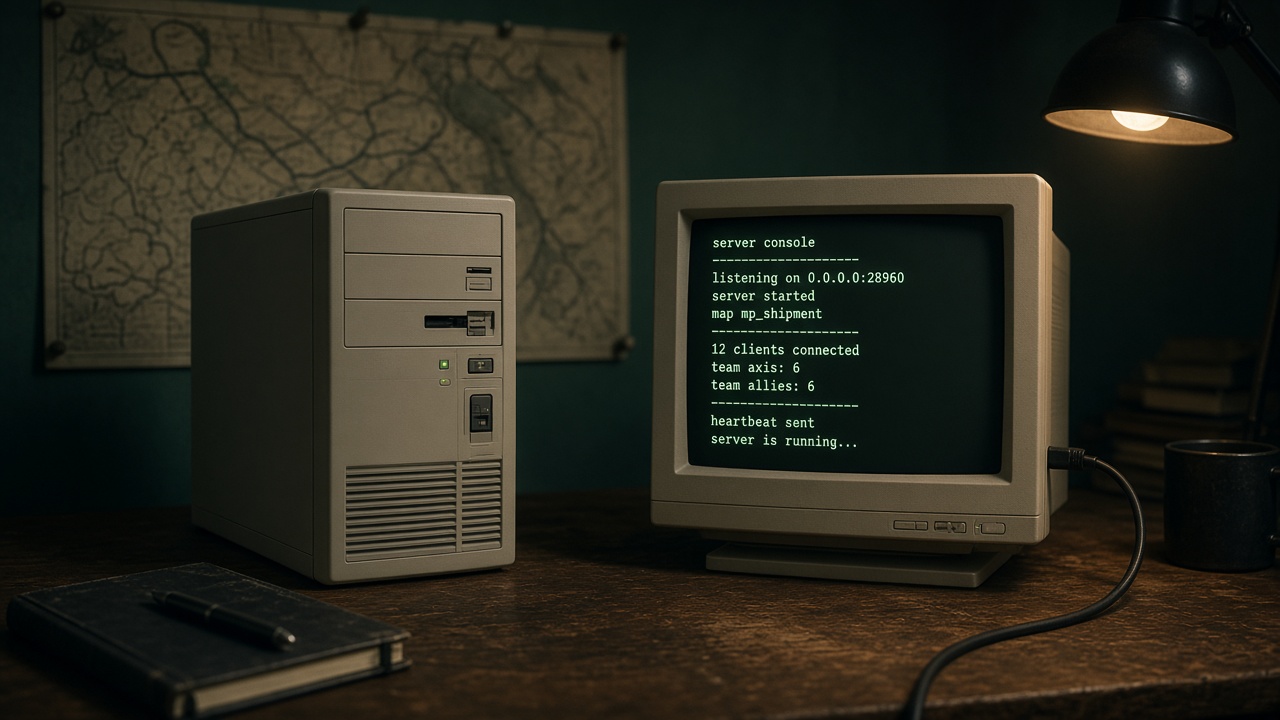
Practical guide to host a Call of Duty 1 (2003) dedicated server at home or on a VPS: version 1.5, server.cfg, UDP port 28960, and a checklist so friends can join. If you only want to play on Wisegrow’s server, use the connection guide.

What you need
- A Call of Duty 1 multiplayer install on version 1.5 (same as your players).
- A stable PC or VPS (Windows or Linux). An old Optiplex / mini-PC is usually enough.
- A fixed LAN IP or DHCP reservation, plus router access for port forwarding.
- Optional: a dynamic hostname (e.g. DuckDNS) if your public IP changes.
Legal note: use copies you own. This guide is for community / LAN servers among friends — not for redistributing the game.
1. Files and version 1.5
- Install the game and the multiplayer 1.5 patch.
- Make sure clients and server match; otherwise you get “Unable to connect” or pure kicks.
- Keep the
mainfolder with base.pk3files. Custom maps go there too (everyone needs the same set).
2. Launch dedicated mode

On Windows, from the game folder (adjust the executable name if yours differs):
CoDMP.exe +set dedicated 2 +set net_port 28960 +exec server.cfgOn Linux (typical dedicated binary):
./cod_lnxded +set dedicated 2 +set net_port 28960 +exec server.cfgdedicated 2= dedicated server (no local rendered client).net_port 28960= classic CoD1 port (UDP).+exec server.cfg= loads your config.
Make a .bat / shell script and leave it running. If the window closes instantly, check paths and that server.cfg exists under main.
3. Sample server.cfg
Save this as main/server.cfg and tweak it:
seta sv_hostname "My CoD1 Server — Community"
seta sv_maxclients "16"
seta g_gametype "tdm"
seta g_password ""
seta rconpassword "change_this"
seta sv_pure "1"
seta sv_floodProtect "1"
seta g_allowVote "1"
seta scr_teambalance "1"
seta scr_fraglimit "100"
seta scr_timelimit "20"
set dedicated "2"
map_rotate
Map rotation (same cfg or a file exec’d at the end):
set sv_mapRotation "gametype tdm map mp_bocage gametype tdm map mp_brecourt gametype sd map mp_carentan"
Common stock maps: mp_bocage, mp_brecourt, mp_carentan, mp_dawnville, mp_depot, mp_harbor, mp_hurtgen, mp_neuville, mp_pavlov, mp_powcamp, mp_railyard, mp_rocket, mp_ship.
4. Networking: LAN vs Internet

LAN only
Friends on the same network connect with:
connect LOCAL_IP:28960Internet (friends outside)
- On the router: forward UDP 28960 → LAN IP of the server PC.
- Windows/Linux firewall: allow inbound UDP 28960.
- Share
your-domain.duckdns.org:28960or your public IP (use DuckDNS if it is dynamic). - Players join with
connect host:28960from the multiplayer console.
Wisegrow reference: public host wisegrow.duckdns.org:28960 (Retro Chile community).
5. Test checklist
- Start dedicated and confirm port + map in the console.
- From another LAN PC:
connect LOCAL_IP:28960. - From outside (mobile data / a friend):
connect public_host:28960. - If it fails: version 1.5, UDP open, correct IP, same
.pk3set.
Common issues
- Unable to connect: closed port, wrong IP, or version mismatch.
- Pure server / different files: remove custom maps or distribute the same
.pk3files; or lowersv_pureonly for private tests. - Nobody sees the server in the browser: normal for modern CoD1; use direct
connect. - High ping: host near your players (Chile / LATAM if that is your community).
- RCON: change
rconpassword; do not post it publicly.
Summary
1. CoD1 MP 1.5
2. server.cfg in main/
3. CoDMP.exe / cod_lnxded +set dedicated 2 +set net_port 28960 +exec server.cfg
4. Open UDP 28960
5. connect host:28960
When it is up, invite the community and check the server listing on Wisegrow. For players: how to connect to Wisegrow’s CoD1.
All guides Collecting blog Store Marketplace
Comments
Be the first to comment.