Guides
How to burn a PSX backup with ImgBurn
Step by step: ImgBurn on Linux (Bottles/Wine) or Windows, burn BIN/CUE, and test the disc on the PSX.
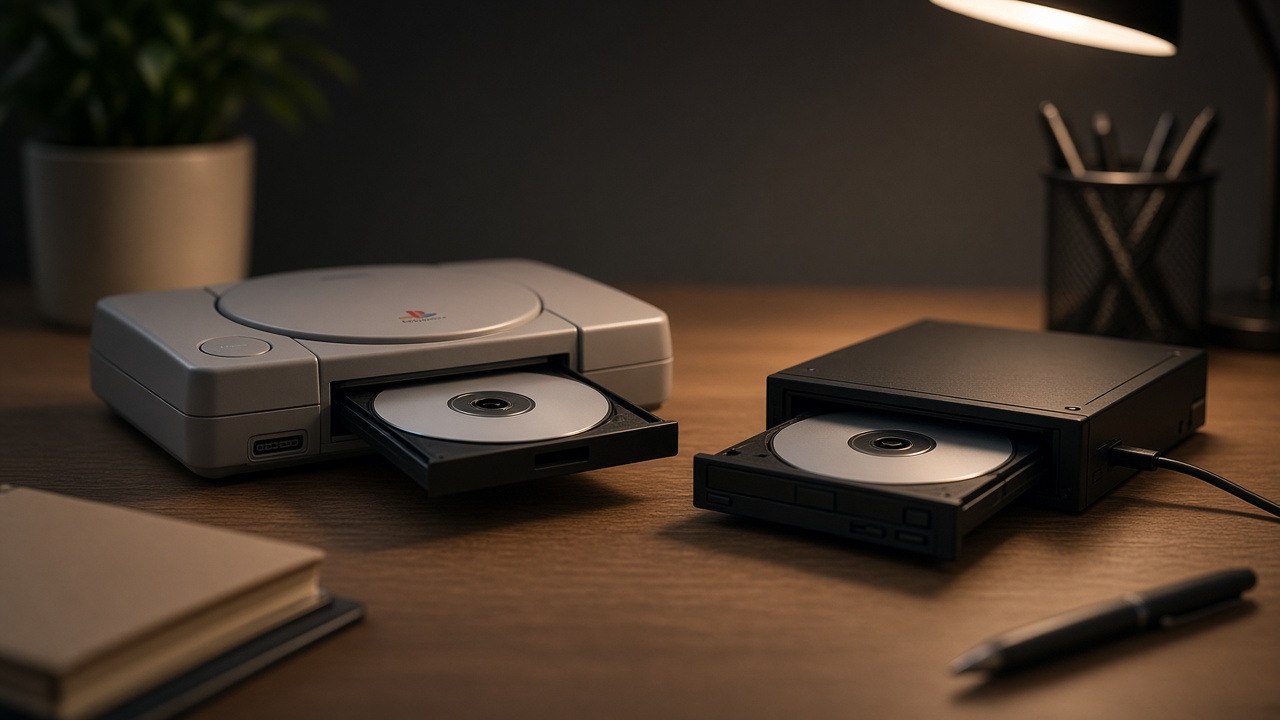
Practical guide to burn a personal PlayStation (PSX) backup with ImgBurn. On Linux use Bottles or Wine; on Windows the same steps apply natively.
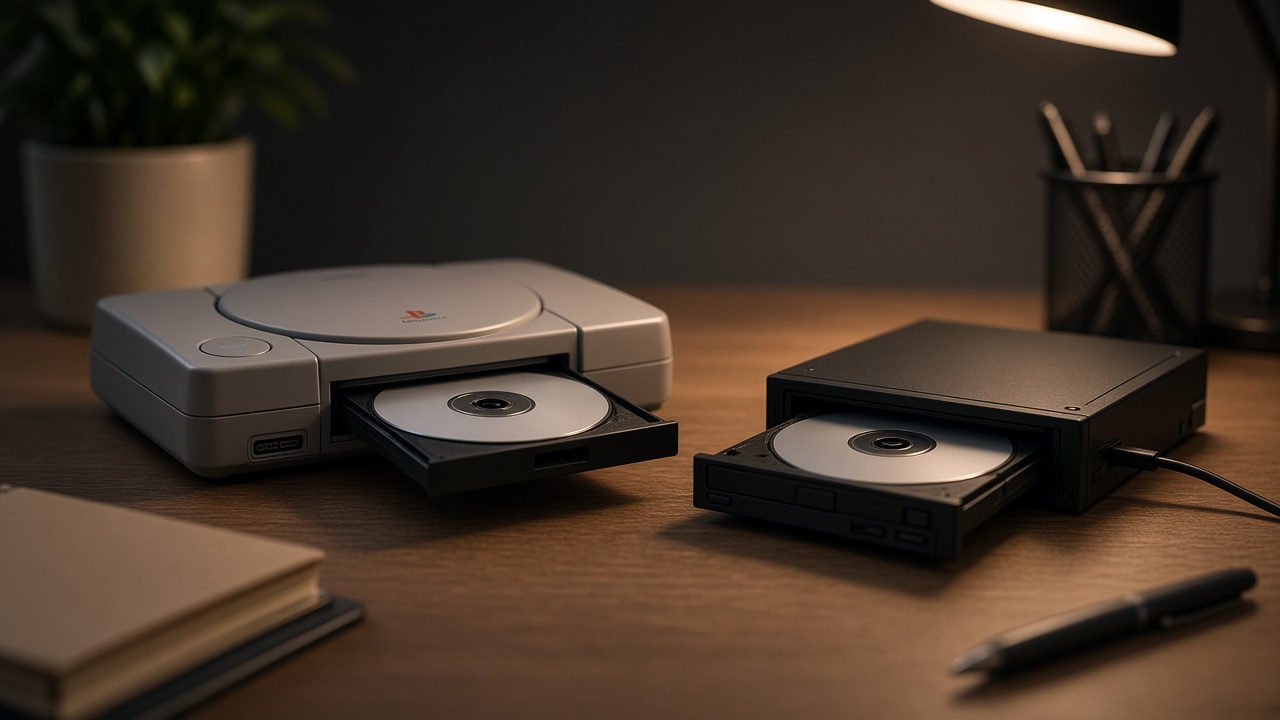
Only backups of games you own. Do not distribute dumps. For media, speeds, and hardware, also read CD/DVD burning recommendations.
What you need
- Image in BIN + CUE (recommended).
- ImgBurn (Bottles/Wine on Linux, or native Windows).
- Blank CD-R and an optical burner.
- A few minutes without saturating the PC.
Step 1 — Install ImgBurn on Linux
- Install Bottles (recommended) or Wine.
- Create a bottle / prefix (Windows 10 usually works well).
- Install ImgBurn inside that bottle.
- Make sure it can see the burner (
/dev/sr0or similar).
Native alternatives: K3b, Brasero, or cdrdao. This guide follows ImgBurn.
Step 2 — Open the CUE (not only the BIN)
- Open ImgBurn.
- Choose Write image file to disc.
- In Source, select the .cue, not the lone .bin.
- Check that it detects tracks and size.
The CUE describes the disc layout. Burning only the BIN usually fails on PSX.
Step 3 — Destination and mode
- Write Speed: the one that already worked in your tests; if it is the first time, try 8x or 16x and note the result.
- Enable post-burn verification if available.
- Avoid overburning.
- Prefer DAO (Disc-at-Once) when the software allows it.
Step 4 — Burn
- Insert a clean CD-R.
- Hit burn.
- Do not suspend the PC or saturate the disk.
- Wait for write + verification.
If ImgBurn marks OK, the real test is still missing: the console.
Step 5 — Test on the PSX
- Insert the disc in the PlayStation.
- Check boot → menu → first few minutes of gameplay.
- If it fails: change speed or media, or check the drive (recommendations article).
Quick checklist
- BIN + CUE
- ImgBurn ready
- Source = .cue
- Speed chosen on purpose
- Burn + verify on PC
- Test on PSX
- Note media + speed + burner
Common problems
- Does not see the burner: Linux permissions / bottle without access to
/dev/sr0. - OK on PC, fails on PSX: speed, CD quality, or the console drive.
- Error mid-burn: power, buffer, defective disc, USB hub.
- Weird audio / will not boot: you burned BIN without CUE or used the wrong DAO mode.
Next reading: CD/DVD burning recommendations for retro consoles.
All guides Collecting blog Store Marketplace
Comments
Be the first to comment.